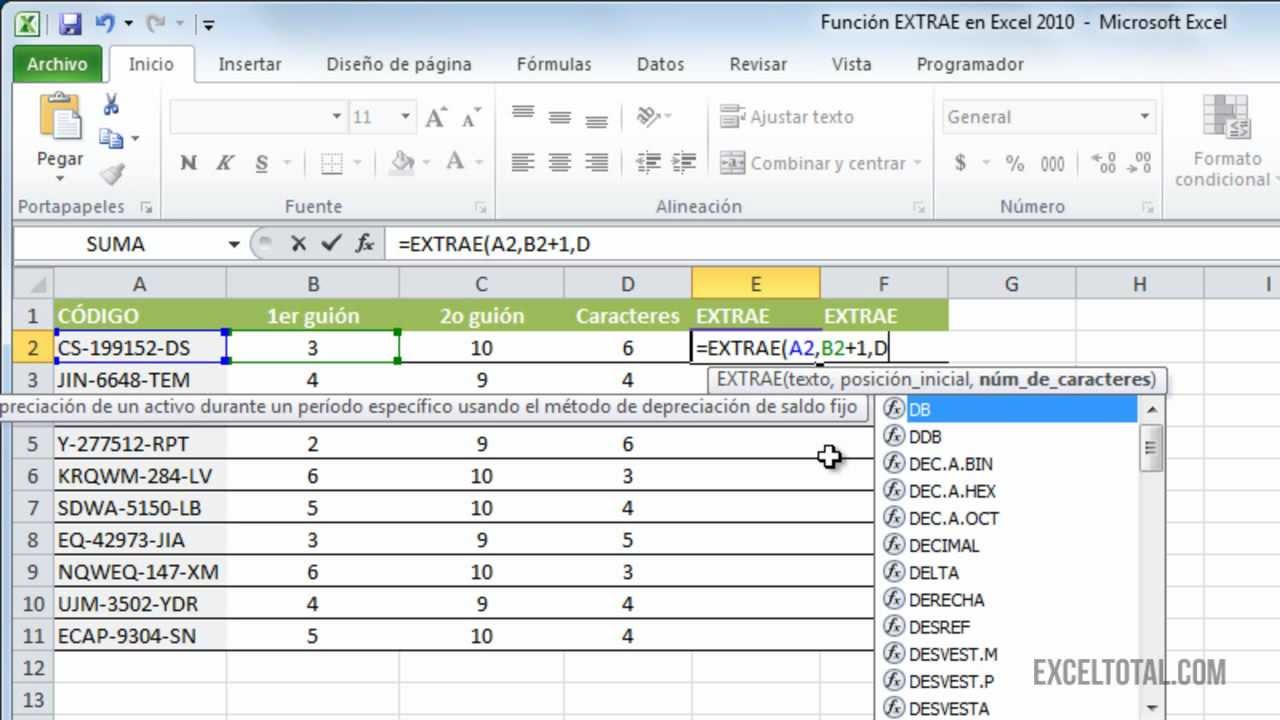
La función EXTRAE (en inglés MID) copia una parte de una cadena de texto: el contenido de una celda o un valor escrito directamente en la fórmula. En este tutorial trabajarás con el libro Control de inventario, donde una parte del código debe quedar separada para facilitating its consultation and later analysis. You will learn to extract the year, the prefix, and the suffix of a product code, as well as the last name from an employee’s full name.
EXTRAE está disponible en Excel para Microsoft 365, Excel 2024, 2021, 2019, 2016 y Excel para Mac. It also works in Excel 2007 and 2010. The data was verified in October 2026.
Qué es EXTRAE y qué problema resuelve
In the Inventory Control workbook, the Inventory sheet contains codes such as ES-2026-0045. The complete code is useful for registering an item, but it is less convenient when you need to filter by year, review its origin, or extract the sequential number.
EXTRAE (in English MID) returns a specific number of characters from a text string, starting at the position you indicate. Its three arguments are mandatory:
=EXTRAE(texto;posición_inicial;núm_de_caracteres)For ES-2026-0045, the string has the following positions:
| Posición | 1 | 2 | 3 | 4 | 5 | 6 | 7 | 8 | 9 | 10 | 11 |
|---|---|---|---|---|---|---|---|---|---|---|---|
| Carácter | E | S | – | 2 | 0 | 2 | 6 | – | 0 | 0 | 4 |
With a starting position of 4 and a length of 4, EXTRAE returns 2026:
=EXTRAE("ES-2026-0045";4;4)The function does not change the source cell. It returns a new text result that can be placed in another column. This is especially useful when a single code contains several useful fields.
Cómo funciona EXTRAE con sus tres argumentos
The syntax has three arguments, and each one answers a different question: what text should be used, where should the copy begin, and how many characters should it contain?
=EXTRAE(texto;posición_inicial;núm_de_caracteres)| Argumento | What it specifies | Example with ES-2026-0045 |
|---|---|---|
| texto | The string from which Excel copies | "ES-2026-0045" or A2 |
| posición_inicial | The position of the first character to copy | 4 |
| núm_de_caracteres | The number of characters to copy | 4 |
The arguments work together. If you change the starting position to 1 and keep four characters, the result becomes ES-2. If you start at 9 and request 20 characters, the result is 0045, because Excel stops when the source text ends.
Texto: la cadena de la que EXTRAE va a copiar
The first argument can be a direct text value:
=EXTRAE("ES-2026-0045";4;4)It can also reference a cell. In the Inventory sheet, suppose A2 contains ES-2026-0045:
=EXTRAE(A2;4;4)Referencing A2 is more useful in a workbook because the formula automatically follows the product code as it is copied down the rows. Typing the code directly is useful for testing a formula, but it does not adapt when the source data changes.
Posición inicial: el primer carácter que quieres copiar
The first character occupies position 1. Therefore, position 1 begins at the beginning of the string, while position 4 begins at the first 2 in ES-2026-0045.
These formulas extract different parts:
=EXTRAE(A2;1;5)This returns ES-20.
=EXTRAE(A2;7;20)This returns 6-0045. Position 7 is the 6, and requesting 20 characters is safe because Excel stops copying when it reaches the end of the source text.
Número de caracteres: la longitud del resultado
The third argument controls the result length. A generous length is useful when you do not know exactly how many characters remain:
=EXTRAE(A2;7;100)The result is 6-0045; the source string simply does not contain 100 characters starting at position 7.
If you need an exact length, calculate it with LARGO. For example, when the starting position is known, the remaining length can be expressed as:
=LARGO(A2)-posición_inicial+1For the inventory example, =LARGO(A2)-4+1 returns 8 because the code has 11 characters. EXTRAE then copies the year and everything that follows it from position 4.
Extrae un código en una hoja de inventario
Now create the Inventory sheet and enter the following codes in A2:A5. The Extracted year column will use EXTRAE to obtain the four digits beginning at position 4.
- Select cell
A2and typeES-2026-0045. - Continue with
ES-2026-0052,ES-2025-0018, andES-2025-0024inA3:A5. - Select
B1and type Extracted year. - Select
B2and enter the formula:
=EXTRAE(A2;4;4)- Press Enter.
| A | B | |
|---|---|---|
| 1 | Código | Año extraído |
| 2 | ES-2026-0045 | 2026 |
| 3 | ES-2026-0052 | 2026 |
| 4 | ES-2025-0018 | 2025 |
| 5 | ES-2025-0024 | 2025 |
B2 displays 2026, not ES-2026 and not a formula error.Coloca la fórmula junto a cada código
The formula belongs next to every code so that the inventory grows without repeating manual work.
- Select
B2. - Point to the lower-right corner of the selected cell, where the fill handle is located.
- Drag the fill handle down to
B5. - Check that the relative reference changes from
A2toA3,A4, andA5.
| A | B | |
|---|---|---|
| 1 | Código | Año extraído |
| 2 | ES-2026-0045 | 2026 |
| 3 | ES-2026-0052 | 2026 |
| 4 | ES-2025-0018 | 2025 |
| 5 | ES-2025-0024 | 2025 |
B2:B5 shows 2026, 2026, 2025, and 2025. If every row shows 2026, the reference was made absolute or copied as a value.Cambia la posición para copiar otra parte
Add two columns to the same inventory: one for the code prefix and another for the sequential number. Do not alter column A.
- Select
C1and type Prefix. - Select
D1and type Sequence. - Select
C2and enter:
=EXTRAE(A2;1;7)- Select
D2and enter:
=EXTRAE(A2;9;20)- Drag both formulas down to row 5.
| A | B | C | D | E | |
|---|---|---|---|---|---|
| 1 | 1 | Código | Año extraído | Prefijo | Secuencia |
| 2 | 2 | ES-2026-0045 | 2026 | ES-2026 | 0045 |
| 3 | 3 | ES-2026-0052 | 2026 | ES-2026 | 0052 |
| 4 | 4 | ES-2025-0018 | 2025 | ES-2025 | 0018 |
| 5 | 5 | ES-2025-0024 | 2025 | ES-2025 | 0024 |
| 6 | > **Comprueba:** The prefix is `ES-2026` or `ES-2025`, and the sequence preserves its four digits as text: `0045`, `0052`, `0018`, and `0024`. | ||||
| 7 | ## Extrae el nombre y el apellido de una celda | ||||
| 8 | Now expand the **Inventory** workbook with a second sheet named **Personal**. It records one full name in `A2`, and the exercise separates the first and last names without knowing in advance how long the surname is. | ||||
| 9 | 1. Select the **Personal** tab. | ||||
| 10 | 2. In `A2`, type `Juan Pérez`. | ||||
| 11 | 3. In `B1`, type **First name**. | ||||
| 12 | 4. In `C1`, type **Last name**. | ||||
| 13 | 5. Select `B2` and enter: | ||||
| 14 | «`excel | ||||
| 15 | =EXTRAE(A2;1;ENCONTRAR(" ";A2)-1) |
- Select
C2and enter:
=EXTRAE(A2;ENCONTRAR(" ";A2)+1;LARGO(A2))- Drag both formulas down as far as the names extend.
| A | B | C | |
|---|---|---|---|
| 1 | Full name | First name | Last name |
| 2 | Juan Pérez | Juan | Pérez |
B2 contains Juan and C2 contains Pérez. The source name in A2 remains unchanged.Localiza el espacio que separa el nombre
ENCONTRAR (FIND in English) returns the position of a character within a text string. In Juan Pérez, the space is the fifth character:
=ENCONTRAR(" ";A2)The result is 5. Because the first name ends immediately before the space, its length is 5 - 1 = 4:
=EXTRAE(A2;1;ENCONTRAR(" ";A2)-1)The result is Juan. Adding +1 to the space position gives position 6, the first character of the surname.
Copia el apellido después del espacio
The surname can vary in length, so it is unnecessary to enter an exact character count. LARGO (LEN in English) provides the total length of the name, and EXTRAE stops when it reaches the end:
=EXTRAE(A2;ENCONTRAR(" ";A2)+1;LARGO(A2))The result is Pérez. This pattern is useful whenever a separator is guaranteed to exist. If the space is missing, ENCONTRAR returns #¡VALOR!; in that situation, the source data needs correction or a more defensive formula is required.
For a second example, suppose A3 contains Ana Morales. ENCONTRAR returns 4, so the surname begins at position 5. The copied formula returns Morales.
Por qué EXTRAE devuelve errores o texto vacío
EXTRAE reports errors when it receives a starting position or character count that it cannot use. Understanding the distinction helps you correct the formula rather than replacing it unnecessarily.
| Situation | Result | Cause | Correction |
|---|---|---|---|
| Starting position below 1 | #¡VALOR! |
The first character must be position 1 or higher | Use 1 or another valid position |
| Negative character count | #¡NUM! |
The length cannot be negative | Use 0 or a positive number |
| Starting position beyond the text | Empty text | There are no characters at that position | Check the source text or use ENCONTRAR |
| Length exceeds the remaining text | Available characters only | Excel stops at the end of the string | No correction is normally needed |
Una posición inicial menor que 1 provoca #¡VALOR!
Enter this formula in a temporary cell:
=EXTRAE(A2;0;5)The sheet displays #¡VALOR!. A starting position of zero tries to begin before the first character. Change the second argument to 1:
=EXTRAE(A2;1;5)With ES-2026-0045 in A2, the corrected formula returns ES-20.
| A | B | E | |
|---|---|---|---|
| 1 | Código | Año extraído | Prueba |
| 2 | ES-2026-0045 | 2026 | #¡VALOR! |
| 3 | ES-2026-0052 | 2026 | ES-20 |
#¡VALOR!; after changing position 0 to 1, the second test displays ES-20.Un número de caracteres negativo provoca #¡NUM!
Try a negative length:
=EXTRAE(A2;1;-2)Excel displays #¡NUM!. The cause is the third argument: the number of characters cannot be negative. Change -2 to 2:
=EXTRAE(A2;1;2)The result is ES.
| A | B | F | |
|---|---|---|---|
| 1 | Código | Año extraído | Prueba |
| 2 | ES-2026-0045 | 2026 | #¡NUM! |
| 3 | ES-2026-0052 | 2026 | ES |
#¡NUM!, while the corrected formula returns ES.Una posición que supera el texto devuelve vacío
The string Flujo de líquido has 15 characters. If you start at position 20, there is no character to copy:
=EXTRAE("Flujo de líquido";20;5)The result is an empty text string "". Excel does not show an error in this case. It means that the requested start lies beyond the source text.
To obtain the full phrase from its first character, use:
=EXTRAE("Flujo de líquido";1;100)The result is Flujo de líquido. A length larger than the text is harmless.
Cuándo EXTRAE no es la mejor herramienta
EXTRAE is flexible, but it is not always the simplest function. Choose it according to where the desired text begins and whether you already know its length.
| Need | Recommended function | Example | Result |
|---|---|---|---|
| Copy from the beginning | IZQUIERDA (LEFT) | =IZQUIERDA(A2;7) |
ES-2026 |
| Copy from the end | DERECHA (RIGHT) | =DERECHA(A2;4) |
0045 |
| Copy from a known or calculated middle position | EXTRAE (MID) | =EXTRAE(A2;4;4) |
2026 |
| Find text with a regular expression | REGEXEXTRACT | Depends on the pattern | Variable |
Usa EXTRAE cuando el comienzo está en medio
IZQUIERDA is clearer when the result always starts at the first character. In the inventory, this extracts the prefix directly:
=IZQUIERDA(A2;7)DERECHA is clearer when the result always ends with the last character:
=DERECHA(A2;4)EXTRAE is preferable when the starting point is in the middle, such as the year beginning at position 4:
=EXTRAE(A2;4;4)It is also useful when the position comes from ENCONTRAR. In the personal-name example, the surname does not begin at a fixed position.
Considera REGEXEXTRACT para patrones más complejos
REGEXEXTRACT is appropriate when you need to extract text according to a pattern rather than a fixed position. It can help with variable structures, but it has a narrower availability: it exists in Microsoft 365 and Excel for the web, not in Excel 2024 or earlier versions.
Search for it through the following route:
For a fixed code with a known structure, EXTRAE remains simpler. Its three arguments clearly show the source, the starting position, and the number of characters to return.
Lo que ya sabes hacer con EXTRAE
- Extract a fixed-length section from a text string, such as
2026fromES-2026-0045. - Use a cell reference instead of repeating the original text inside the formula.
- Copy a formula down with the fill handle so that each row uses its corresponding source cell.
- Extract the beginning or end of a code with IZQUIERDA or DERECHA.
- Combine EXTRAE with ENCONTRAR and LARGO to separate a surname from a full name.
- Distinguish
#¡VALOR!caused by a starting position below 1 from#¡NUM!caused by a negative character count. - Understand that a position beyond the end of the string returns empty text rather than an error.
- Evaluate REGEXEXTRACT for advanced patterns, while keeping in mind its availability in Microsoft 365 and Excel for the web.
Your next step is to open the Inventory Control workbook, replace one of the sample codes, and adjust the position or character count until each extracted field serves the purpose you need.
Dudas al usar EXTRAE en Excel
1. ¿Cómo se llama la función para extraer texto en Excel en inglés?
La función se llama EXTRAE en español y MID en inglés. Su sintaxis es =EXTRAE(texto;posición_inicial;núm_de_caracteres). Por ejemplo, =EXTRAE(A2;4;4) devuelve los cuatro caracteres que comienzan en la cuarta posición de A2.
2. ¿Qué ejemplos de EXTRAE en Excel puedo practicar?
Puedes extraer «2026» de «ES-2026-0045», obtener «ES-2026» desde el inicio o «0045» desde el final. También puedes combinarla con ENCONTRAR para separar el apellido de «Juan Pérez». These ejemplos usan cálculos copiables y verificables.
3. ¿Cómo extraigo texto de una celda de Excel usando la función en inglés?
En inglés, utiliza MID. Su equivalente en español es EXTRAE: =EXTRAE(A2;1;5). El primer argumento es la celda o el texto, el segundo indica dónde comenzar y el第三个 cuántos caracteres copiar. En Excel con punto decimal, utiliza coma como separador.
4. ¿Cómo uso ENCONTRAR junto con EXTRAE en Excel?
ENCONTRAR localiza un carácter dentro de una cadena y devuelve su posición. En «Juan Pérez», =ENCONTRAR(" ";A2) devuelve 5. Para copiar el apellido, usa =EXTRAE(A2;ENCONTRAR(" ";A2)+1;LARGO(A2)), porque el apellido comienza después del espacio.
5. ¿Cómo extraigo texto entre dos caracteres en Excel?
Si los delimitadores son distintos, usa ENCONTRAR para localizar cada uno. La longitud del fragmento es la posición del delimitador final menos la del inicial, menos uno. Después, EXTRAE usa esa posición inicial y longitud. Para dos espacios, ENCONTRAR debe empezar la segunda búsqueda después del primer espacio.
6. ¿Para qué sirve DERECHA en Excel?
DERECHA copia caracteres desde el final de una cadena. Por ejemplo, =DERECHA("ES-2026-0045";4) devuelve «0045». Resulta más directa que EXTRAE cuando ya sabes cuántos caracteres hay al final, aunque EXTRAE ofrece mayor control sobre la posición inicial.
7. ¿Para qué sirve IZQUIERDA en Excel?
IZQUIERDA copia caracteres desde el principio de una cadena. =IZQUIERDA("ES-2026-0045";7) devuelve «ES-2026». Se recomienda cuando solo necesitas el inicio, porque evita calcular una posición inicial intermedia.
8. ¿La fórmula para extraer texto funciona en Excel 2010?
Sí. La función EXTRAE existe en Excel 2010 y en las versiones posteriores de escritorio indicadas por Microsoft, incluida Microsoft 365. También se utiliza en Excel para Mac. Su sintaxis en español es =EXTRAE(texto;posición_inicial;núm_de_caracteres).
Fuentes
- MicrosoftEXTRAE — documentación oficialconsultado el 28/10/2026
- MicrosoftBDEXTRAER — documentación oficialconsultado el 28/10/2026
- MicrosoftFONETICO — documentación oficialconsultado el 28/10/2026
- MicrosoftREGEXEXTRACT — documentación oficialconsultado el 28/10/2026